
How to get Launchpad back on macOS 26 Tahoe
Apple replaced Launchpad with the Apps view in Spotlight in macOS 26 Tahoe. Use that free built-in view, or install a Launchpad replacement such as Relaunch for a full-screen grid with your own folders, pages, F4 and a trackpad pinch.
Last updated 16 November 2026
By Nicholas Gaston, maker of Relaunch
Where is Launchpad in macOS Tahoe?
In macOS 26 Tahoe, Apple took Launchpad out of the Mac. Its place went to the Apps view in Spotlight, which lists your apps and groups them into categories Apple chooses. Apple documents the built-in options in its Spotlight app guide.
What most people miss is what Launchpad let them do themselves:
- a full-screen grid of every app, in pages you swipe through, like an iPad;
- folders you make by dropping one app on another, and an order that stays the way you left it;
- opening it with the F4 (Launchpad) key, a hot corner or a pinch on the trackpad.
Can you turn the old Launchpad back on?
No. There's no setting in System Settings that brings it back, and Launchpad isn't something you can download from Apple. Older guides that suggest Terminal commands were written for earlier macOS versions. On macOS 26 you have two real choices: use the Apps view, or install an app that rebuilds the grid.
Your options
1. Use the Apps view and Spotlight (free, built in)
Click Apps in the Dock, or open Spotlight (⌘ Space) and press ⌘ 1. That works on macOS 26 and 27. See how to open Apps and switch between grid and list, or add the Applications folder to your Dock for a one-click Finder shortcut.
2. Install a Launchpad replacement
If you want your own grid and folders back, a separate Mac app can provide them. Relaunch, which we make, adds editable pages and folders, app search, F4, hot corners and a trackpad pinch. It runs alongside Spotlight; it does not reinstall Apple's Launchpad. The core grid works without Apple Intelligence.
Relaunch is a one-time purchase, with Solo for 1 Mac and Duo for 2 Macs. Both plans include every feature and every update, and during the launch offer both are 100% off.
It is not the only choice. Free and open-source apps exist too; see Launchpad replacements for macOS 26 Tahoe, compared.
What Relaunch looks like
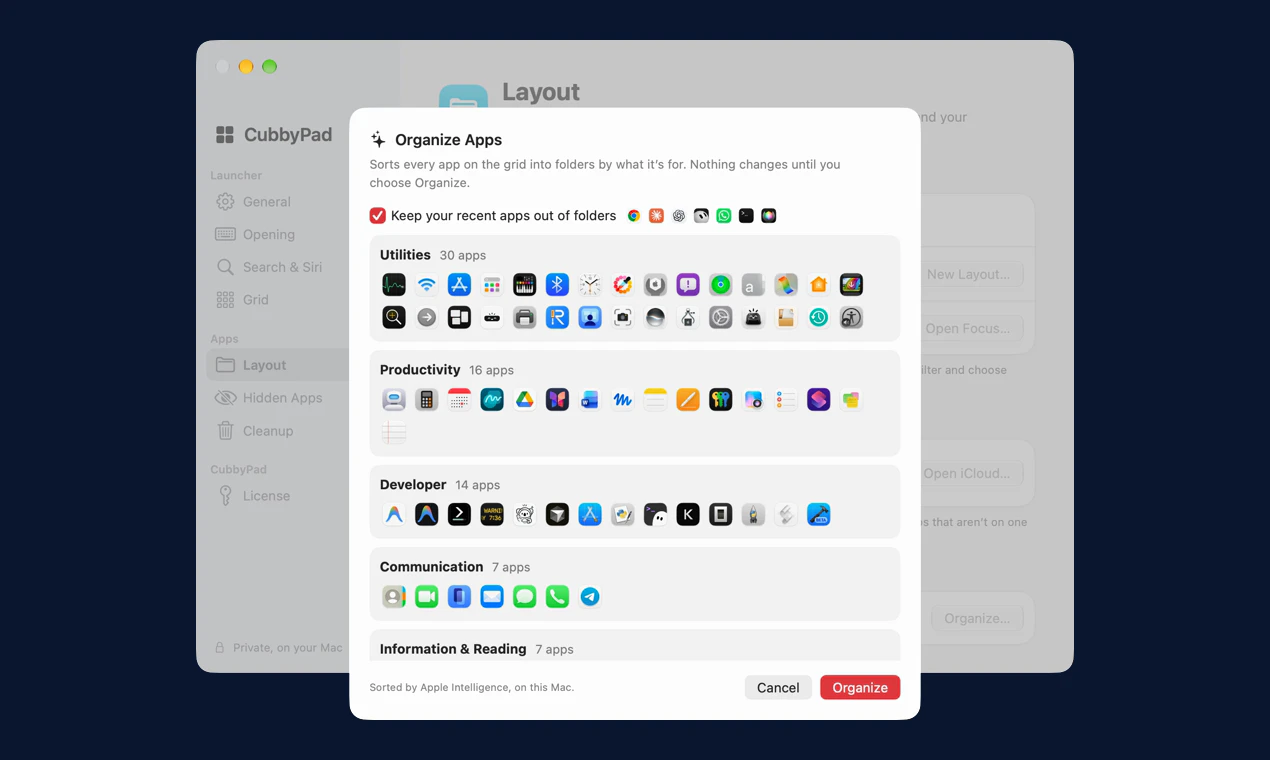
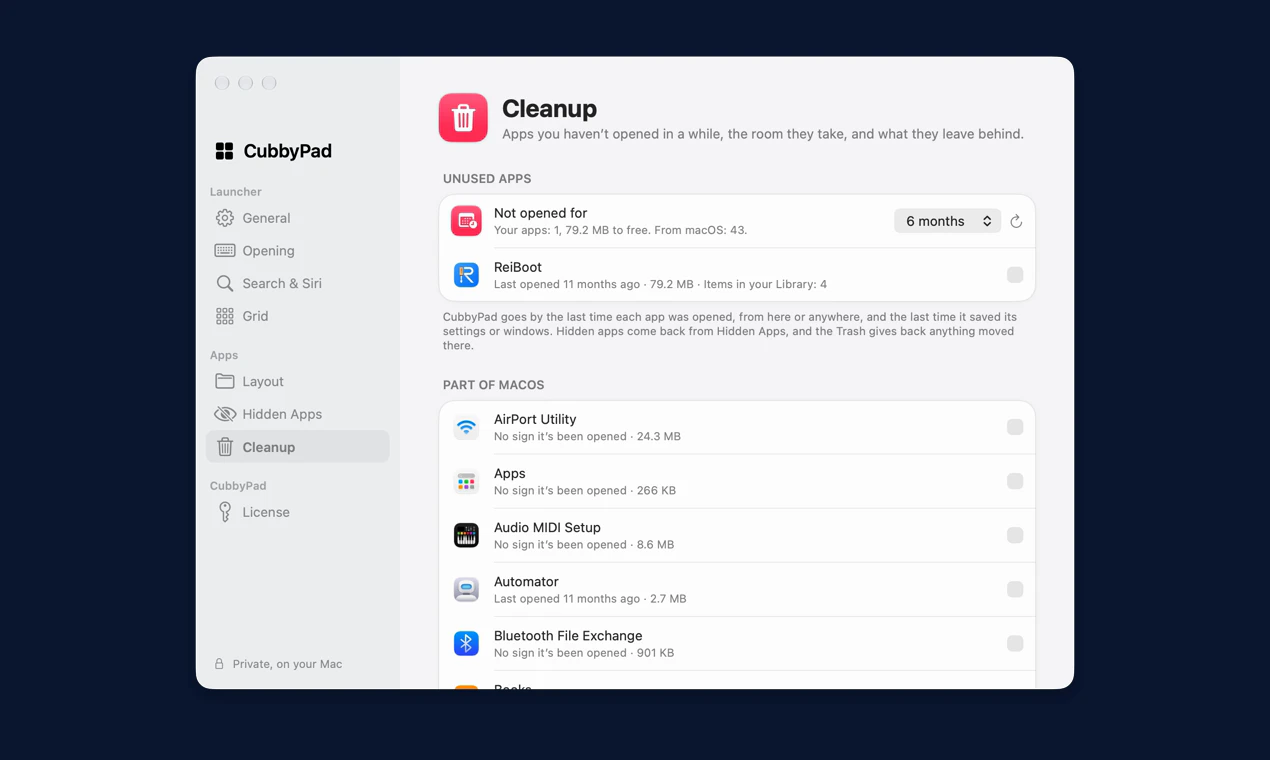
These are screenshots of Relaunch 1.x running on macOS 26 Tahoe.
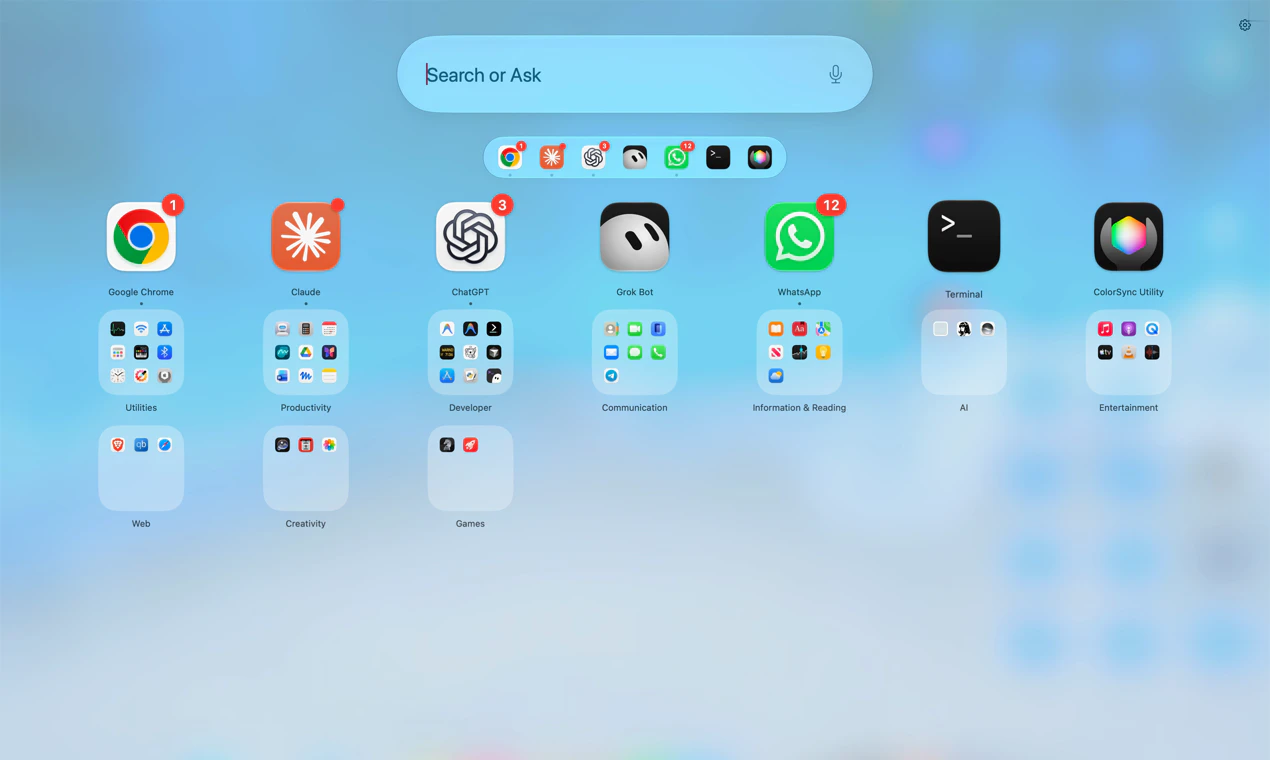
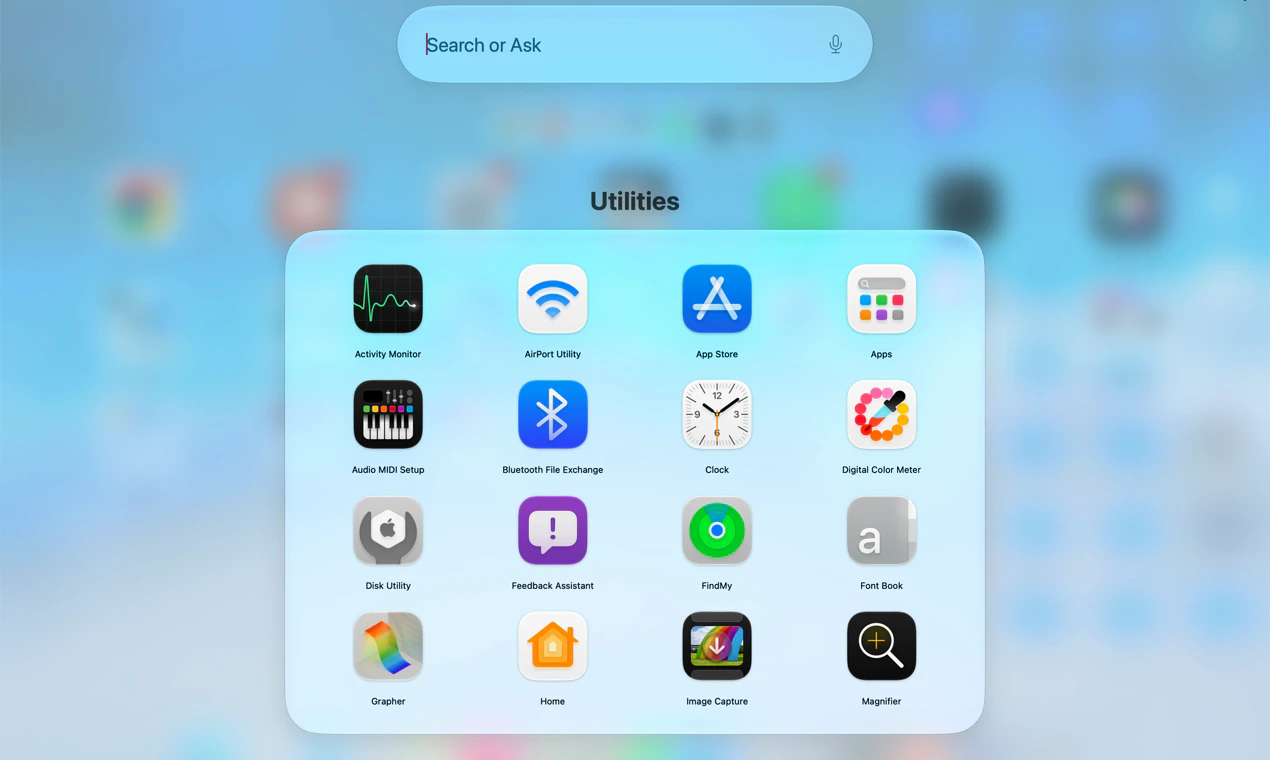
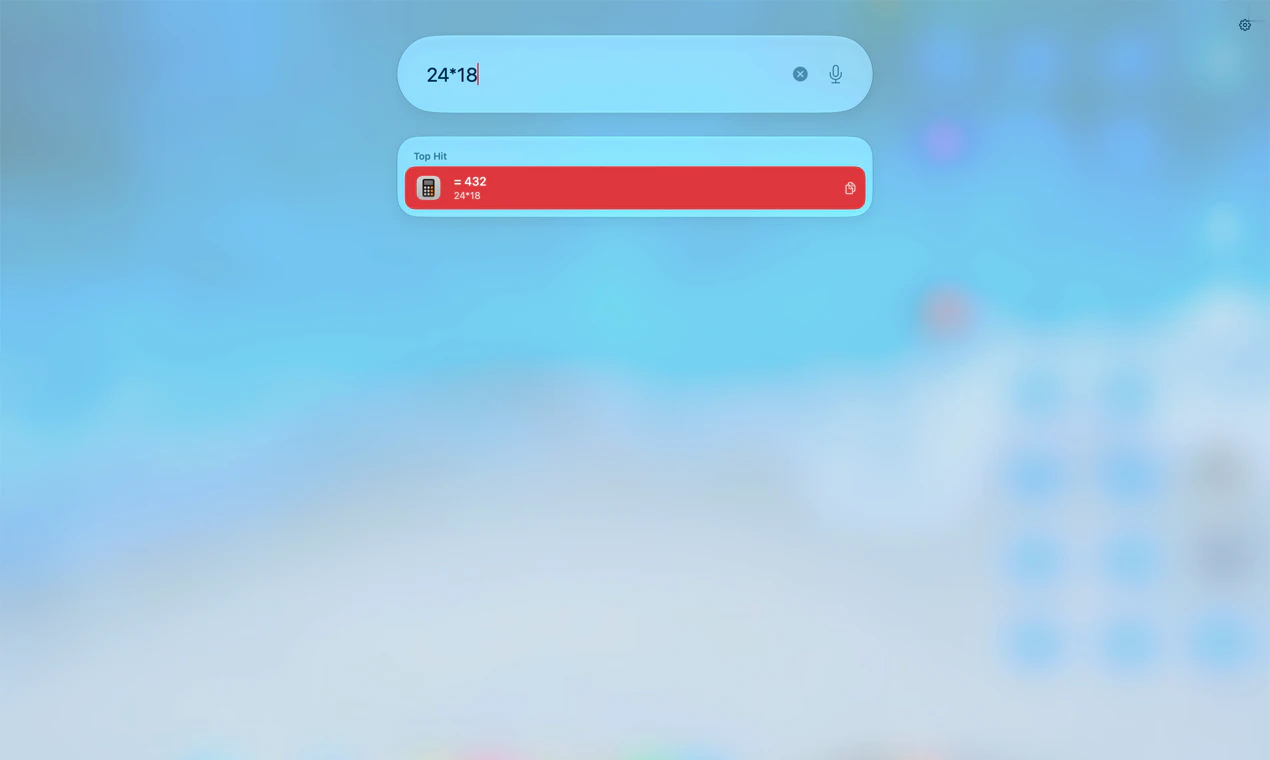
Getting Launchpad back with Relaunch
- Download Relaunch, open the DMG and drag Relaunch into Applications. It needs macOS 26 or later.
- Open it. Relaunch is distributed directly and is not notarized by Apple, so macOS blocks the first open. Click Done, then go to System Settings › Privacy & Security and click Open Anyway. You only do this once. The help page has the details.
- Get Relaunch for $0.00 during the launch offer (100% off). Solo is for 1 Mac and Duo for 2 Macs. Gumroad emails your license key; paste it into Settings › License.
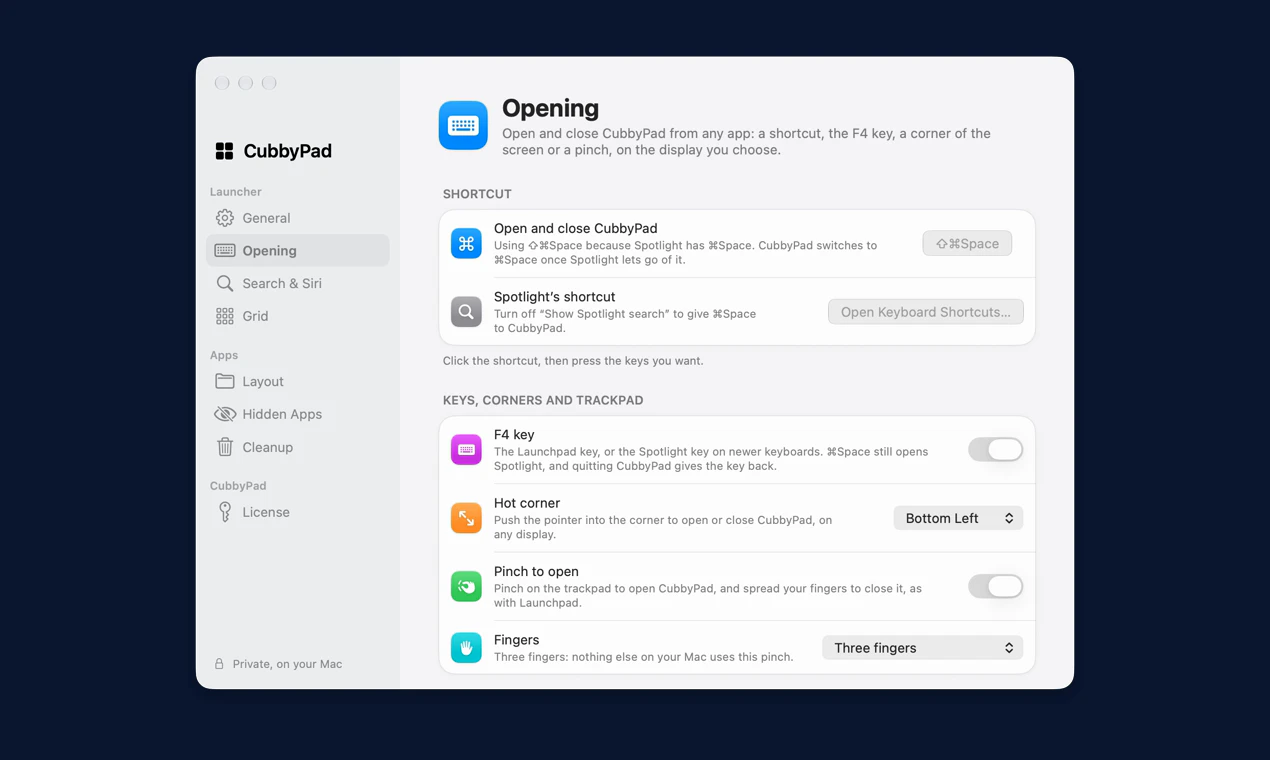
- The welcome lets you choose how to open it: ⇧ ⌘ Space (or ⌘ Space once you turn off Spotlight's shortcut), the F4 key, a hot corner, or a three-finger pinch.
Getting your old folders back
macOS 26 doesn’t carry Launchpad’s pages and folders forward, and Relaunch doesn’t read Apple’s old Launchpad files. Here’s how to rebuild a familiar grid quickly.
Starting fresh? Drag one app onto another to make a folder, as you did in Launchpad, or let Settings › Layout › Organize sort every app into folders by what it's for. You see the folders before anything changes, and Undo puts your old layout back.
Getting F4 and the pinch back
In Relaunch's Settings › Opening, turn on the F4 key (it's the Launchpad key on older keyboards and the Spotlight key on newer ones), Pinch to open (spread your fingers to close it again) and a Hot corner on any display. Use one or all of them.
Choose Fingers › Three fingers for the pinch. A three-finger pinch and a three-finger swipe up are different gestures. If another view opens, follow the trackpad pinch troubleshooting steps. To keep Spotlight on ⌘ Space, use Relaunch's default ⇧ ⌘ Space.
What Relaunch adds that Launchpad never had
- Search that does things: initials (
gcfinds Google Chrome), sums (24*18), System Settings pages (“dark mode”), your Shortcuts and an app's recent files. - Search by voice, or say what you want to do (“edit photos”) and Apple Intelligence suggests apps, on your Mac.
- A row of the apps you usually open at this time of day.
- Work and Personal layouts that switch with your Focus, and the same grid on your other Mac through iCloud Drive.
- Cleanup, which finds apps you haven't opened in months and the space they take.
Choose Solo for 1 Mac or Duo for 2 Macs. Both include every feature and every update, and both are 100% off right now. See pricing.